
Wish that you could watch your live stream on your own website? You can with Momento Live which allows you to embed your broadcast and live chat on your website.
How to embed a Momento Live stream
1. In the Sessions tab, click Create.
2. Select Momento Live

3. Add any additional destinations, if you’d like to multistream to any other platforms. This step is optional when you’re embedding!

4. Click Next and set your description, date and registration if desired.
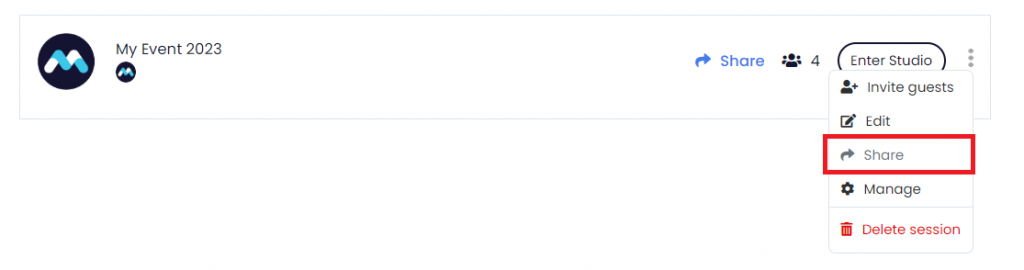
5. Once the Session is created, look for your session, click on the 3 dots and select Share
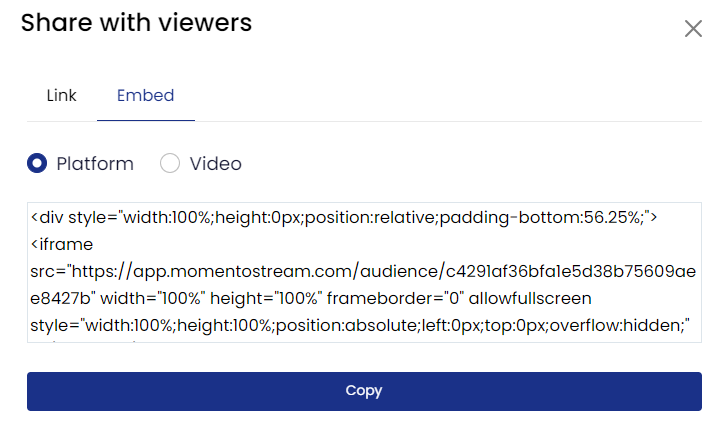
6. Choose the Embed tab and then the Video option to get the code of the embedded player of your streaming. Copy and paste the embed code onto your website.
How to embed a chat
1. In the Sessions tab, click Enter studio in the session you want to get the chat from.ç

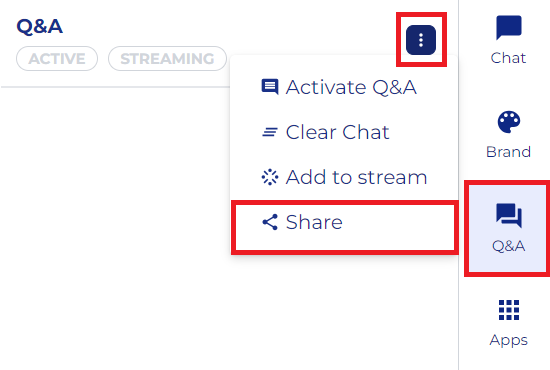
2. Once you are inside the studio, selsect the Q&A tab, click on the 3 dots, and click on the Share option
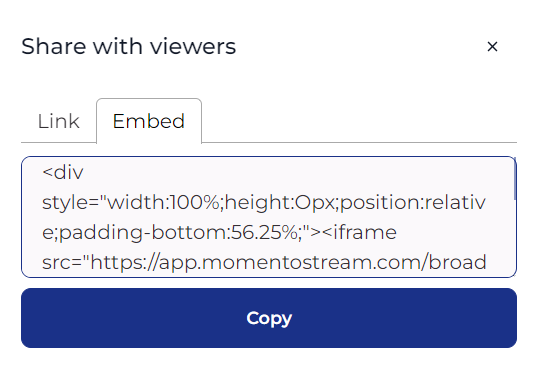
3. A popup will open, where you can copy the link of the chat and pass it to your audience if they want to open it on their phones or select the Embed tab to get the code of the embedded chat of your session. Copy and paste the embed code onto your website.
Note that the embed code of the stream player and session chat will be different for each session